

OP#1 · Jul 9, 2024
{How to use Steam Game Recording beta to download gameplay}

You no longer need third-party software to record highlight-worthy plays in Counter-Strike 2, DOTA, or any other Steam game. Here’s everything you need to know about how to use Steam Game Recording.Steam has a vast collection of games, including some that are great for creating click-worthy content. Whether you’re capturing funny moments in Among Us or pulling off impressive headshots in CS2, there are plenty of memorable moments worth recording.
How to use Steam Game Recording
➡️ How to participate in Steam Game Recording beta?:
To test this program, which is currently in beta, you must enable Steam’s beta update from the settings.
Steam will take a few seconds to update once you have restarted your PC. This means an update has been installed on your device, making you eligible for the Steam Game Recording beta.
To find it, go back to Steam settings, and click on Game Recording from the menu. Here, you’ll get two options to record your gameplay. You can either start it from the get-go or select “Record on demand” to save shorter clips while you’re in-game.
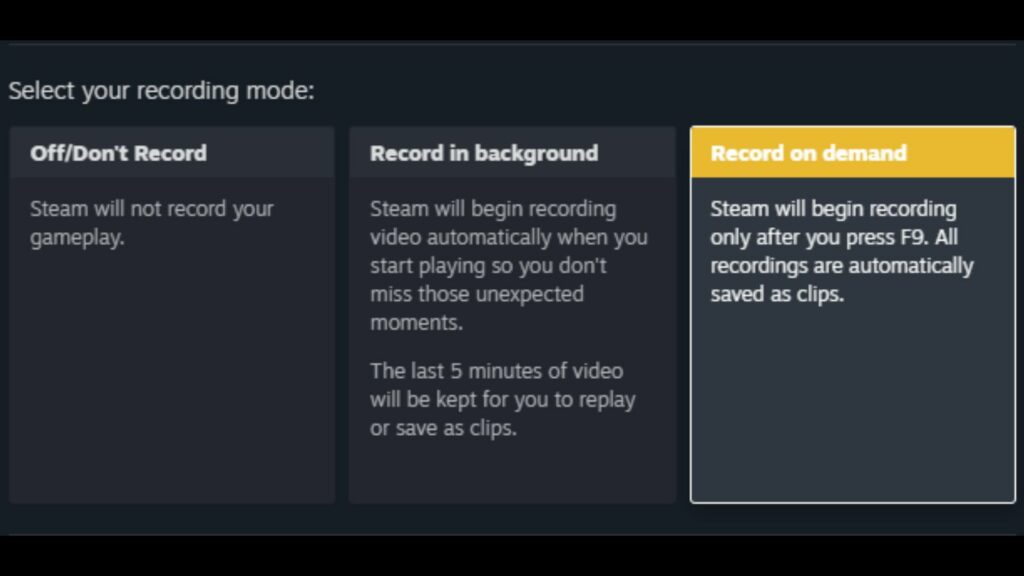
Record in background has several customization options for video quality, hotkeys, and more. Go to the “Interface” and select the option in the middle to start recording as soon as you start any game on Steam.Currently, you can only record up to 120 minutes of gameplay by pressing a hotkey that you can change from settings.If you’re short on disk space, you can change the recording duration in settings. The software will show you how much space the recording will take up.
You no longer need third-party software to record highlight-worthy plays in Counter-Strike 2, DOTA, or any other Steam game. Here’s everything you need to know about how to use Steam Game Recording.Steam has a vast collection of games, including some that are great for creating click-worthy content. Whether you’re capturing funny moments in Among Us or pulling off impressive headshots in CS2, there are plenty of memorable moments worth recording.
How to use Steam Game Recording
➡️ How to participate in Steam Game Recording beta?:
To test this program, which is currently in beta, you must enable Steam’s beta update from the settings.
- Start Steam and go to settings
- Click on “Interface”
- Select any option from “Client Beta Participation” besides no beta chosen
- Restart your device
Steam will take a few seconds to update once you have restarted your PC. This means an update has been installed on your device, making you eligible for the Steam Game Recording beta.
To find it, go back to Steam settings, and click on Game Recording from the menu. Here, you’ll get two options to record your gameplay. You can either start it from the get-go or select “Record on demand” to save shorter clips while you’re in-game.
Record in background has several customization options for video quality, hotkeys, and more. Go to the “Interface” and select the option in the middle to start recording as soon as you start any game on Steam.Currently, you can only record up to 120 minutes of gameplay by pressing a hotkey that you can change from settings.If you’re short on disk space, you can change the recording duration in settings. The software will show you how much space the recording will take up.