

OP#1 · Jul 9, 2024
{THE BEST CS2 LAUNCH OPTIONS: STEP-BY-STEP}
Did you know that the average CS2 player has over 600 hours of playtime? If you’re someone who plays a lot, it might be worth optimizing your CS2 launch options, as it can save you a lot of time in the long run.We’re going to show exactly how the best CS2 players optimize their launch options for the smoothest experience in-game.
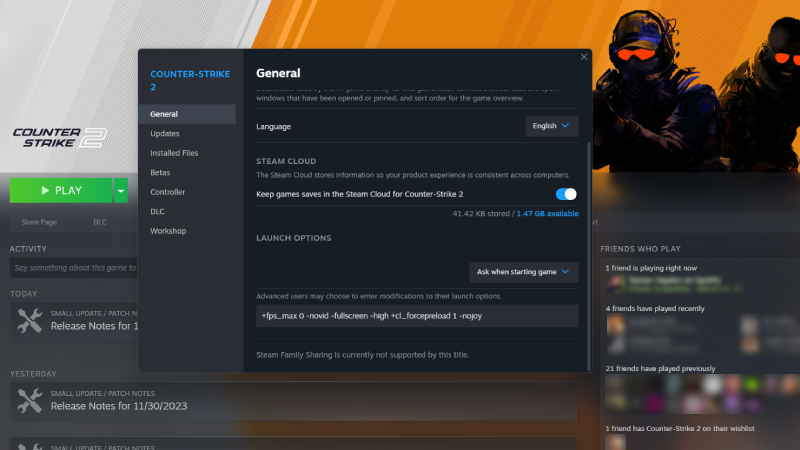
HOW TO ENTER CS2 LAUNCH OPTIONS: STEP BY STEP
To use the best CS2 launch options, you must use Steam’s launch options to ensure they’re active each time you launch the game. If you click CS2 on Steam and enter the ‘Properties‘ menu, there will be a ‘Launch Options‘ setting. This is where you’ll enter all of your CS2 launch settings.
BEST CS2 LAUNCH OPTIONS
+fps_max 0: You’ll only benefit from this if you have a high refresh rate monitor such as 120Hz or 144Hz, but for players who do, it’s an absolute necessity. It’s one of the best launch options for CS2, as the extra frame rate can be the difference between whether you kill an enemy or not. You’ll find this setting in most CS pro settings, as at the top of the game players can’t afford low
FPS.-novid: This removes the short Valve intro that plays when you launch CS2. If you play most days, this is one of the best CS2 launch options, as the short time can add up!
-fullscreen: If you usually play in windowed mode, enter this command. By putting your game into fullscreen, it stops your PC from rendering other elements of the Windows UI, and allows CS2 to use more resources. You should see an FPS boost from this.
-high: This makes CS2 a higher priority, and your PC will allocate more resources to it. Again, you should see an FPS boost from this.
+cl_forcepreload 1: This console command forces the game to preload models and textures prior to a game, rather than in it. This one is a trade-off. While maps will take longer to load, your FPS will improve as a result.
-nojoy: Nobody wants to play CS2 with a controller, and if you’ve got one plugged into your PC, it’s easy to accidentally knock it and throw off your aim. This is one of the best CS2 launch options as it completely disables the use of a controller, so this can’t happen.
+cl_showfps 1: This CS2 launch setting shows you your FPS in the corner of your screen, so you know how your performance is holding up.
If you’ve done it correctly, your CS2 launch options in Steam should look like this:
+fps_max 0 -novid -fullscreen -high +cl_forcepreload 1 -nojoy +cl_showfps 1
You can copy and paste these into your Steam settings, for the easiest CS2 launch settings possible. While there are more console commands that you can add to this list, we feel these are the essential Counter-Strike launch options that most regular players will need.
Did you know that the average CS2 player has over 600 hours of playtime? If you’re someone who plays a lot, it might be worth optimizing your CS2 launch options, as it can save you a lot of time in the long run.We’re going to show exactly how the best CS2 players optimize their launch options for the smoothest experience in-game.
HOW TO ENTER CS2 LAUNCH OPTIONS: STEP BY STEP
To use the best CS2 launch options, you must use Steam’s launch options to ensure they’re active each time you launch the game. If you click CS2 on Steam and enter the ‘Properties‘ menu, there will be a ‘Launch Options‘ setting. This is where you’ll enter all of your CS2 launch settings.
BEST CS2 LAUNCH OPTIONS
+fps_max 0: You’ll only benefit from this if you have a high refresh rate monitor such as 120Hz or 144Hz, but for players who do, it’s an absolute necessity. It’s one of the best launch options for CS2, as the extra frame rate can be the difference between whether you kill an enemy or not. You’ll find this setting in most CS pro settings, as at the top of the game players can’t afford low
FPS.-novid: This removes the short Valve intro that plays when you launch CS2. If you play most days, this is one of the best CS2 launch options, as the short time can add up!
-fullscreen: If you usually play in windowed mode, enter this command. By putting your game into fullscreen, it stops your PC from rendering other elements of the Windows UI, and allows CS2 to use more resources. You should see an FPS boost from this.
-high: This makes CS2 a higher priority, and your PC will allocate more resources to it. Again, you should see an FPS boost from this.
+cl_forcepreload 1: This console command forces the game to preload models and textures prior to a game, rather than in it. This one is a trade-off. While maps will take longer to load, your FPS will improve as a result.
-nojoy: Nobody wants to play CS2 with a controller, and if you’ve got one plugged into your PC, it’s easy to accidentally knock it and throw off your aim. This is one of the best CS2 launch options as it completely disables the use of a controller, so this can’t happen.
+cl_showfps 1: This CS2 launch setting shows you your FPS in the corner of your screen, so you know how your performance is holding up.
If you’ve done it correctly, your CS2 launch options in Steam should look like this:
+fps_max 0 -novid -fullscreen -high +cl_forcepreload 1 -nojoy +cl_showfps 1
You can copy and paste these into your Steam settings, for the easiest CS2 launch settings possible. While there are more console commands that you can add to this list, we feel these are the essential Counter-Strike launch options that most regular players will need.